Showing posts with label Amazon S3. Show all posts

Tuesday, April 22, 2014

Loading Big Index Data into newly launched Amazon CloudSearch engine

Search tier is the most critical section of many online verticals like travel, e-commerce, classifieds etc. If users cannot search products efficiently they will not make their buying decisions properly, which in turn massively affects the revenues of these companies. Most of them are usually powered by Apache Solr, FAST , Autonomy, ElastiSearch etc.  AWS also has a Search Service called CloudSearch which is a fully-managed service in the cloud that makes it easy to set up, manage, and scale a search solution for your website. Amazon CloudSearch relieves you from the worry of hardware provisioning, setup, and maintenance. As your volume of data and traffic fluctuates, Amazon CloudSearch automatically scales to meet your needs.

In AWS infrastructure Apache Solr has been the king and the software to beat till now, recently it has got heavy competitor in the form of Amazon CloudSearch - API 2013-01-01. 
API version 2013-01-01 of Amazon CloudSearch is internally powered by customized version of Apache Solr Engine, and it is specifically designed for running highly scalable and available search on Amazon Web Services Cloud. This 2013 CloudSearch API has lots of similarities with Apache Solr and customers can easily migrate to this version and leverage the benefits of Amazon Cloud Infrastructure. We are already hearing many AWS customers are planning their migration from FAST, Solr and A9 Engine into the Amazon CloudSearch - 2013-01-01 API engine. 

My team is already migrating couple of customers into this Amazon CloudSearch 2013-01-01 API and i have shared our experience on this process for the benefit of AWS community.

Reference Migration Architecture and requirements:
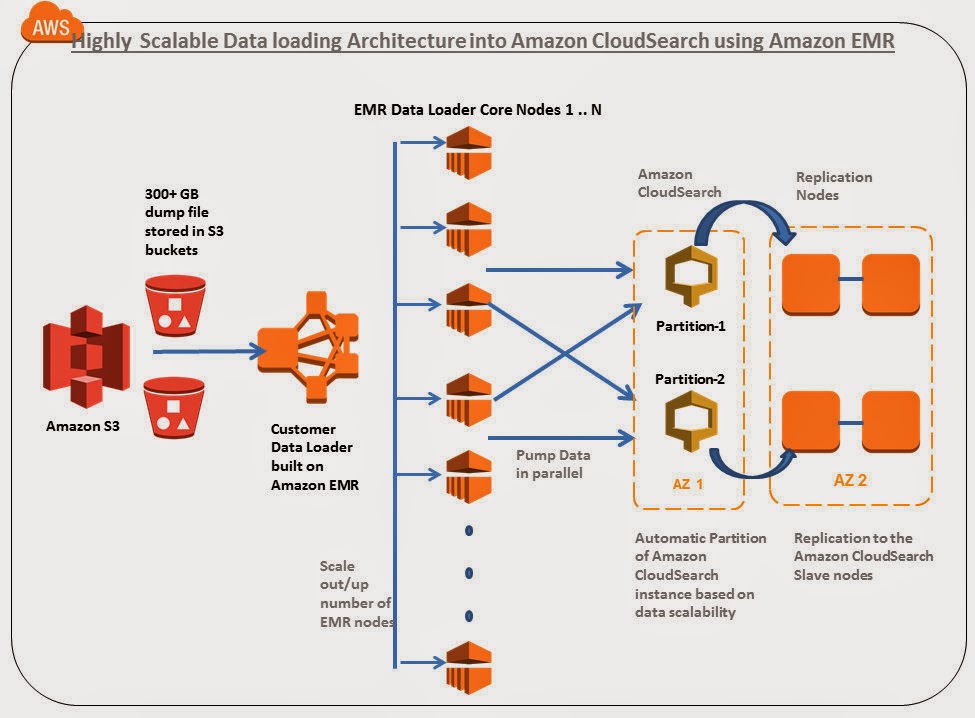


In this article i am going to explore how to 

  • Migrate a 300+ GB index containing close to 247+ million records distributed in 105 searchable fields in a highly scalable /parallel manner in AWS infrastructure.
  • 300 + GB index file is stored in Amazon S3
  • Custom Data loader program built on Amazon Elastic MapReduce is used for parallel loading
  • Around ~6 Search.M2.2Xlarge are created with 2 partitions and 5 replication count
  • Around 10+ M1.large EMR Core nodes are for Data loading. This loader can be increased to hundreds of nodes depending upon the volume and velocity of data pump required.
  • Amazon CloudSearch Infrastructure provisioning, Automated partitioning, replication count are handled by AWS.   

Lets get into the details below:

Step 1)Create a new Amazon CloudSearch Domain: We have named the search domain as "bigdatasearch" and chose the search instance type as search.m2.2xlarge.  Since we are planning to pump and query a 300 GB index with millions of document, it did not make sense for us to chose a smaller instance type of Amazon CloudSearch.  Usually the base instance type can be selected based on the number and size of the documents you are planning to maintain in the Amazon CloudSearch. 
Note: Here we have chosen replication count as 5.  This is little strange in a distributed architecture because usually more replication count for the master decreases the speed of document upload. But when we were playing with Amazon CloudSearch we observed that it is increasing the speed of uploads. In addition we also observed the following :

  • If we keep the replication count 0 or less, use a smaller search instance type and pump documents in parallel from multiple nodes, either the Amazon CloudSearch Server is failing sometimes or error rates are high.
  • If we keep the replication count 0 or less , use a larger search instance type and pump documents in parallel from multiple nodes, internally Amazon Cloud Search itself is creating 3-5 nodes and it shows in the replication count. Waiting to discuss with AWS SA folks on this behavior.


We will be utilizing distributed uploading technique which we custom built using Amazon Elastic MapReduce to pump data to the Amazon CloudSearch server. This technique enables us to write more Index data in parallel.  

Step 2) Select how you would like to create the Amazon CloudSearch Schema: Here we have chosen Manual setup, since we already have schema to be migrated to Amazon CloudSearch.


Next step is to Add index fields to create your Amazon CloudSearch Schema configuration.

Step 3)Adding Amazon CloudSearch Index Fields: Once all the fields have been configured in the schema, click on continue button. In the schema file used we have 100+ fields to be indexed for this particular search domain.


Step 4) Review the setup configurations and launch:
We have 100+ Index fields with scaling options instance type as m2.2xlarge and replication count 5 in the "bigdatasearch" domain.


Step 5 ) Wait till the Amazon CloudSearch Infrastructure is provisioned for you on the back. Usually it takes 10 minutes, it will also list if there is any error encountered when creating the index fields.


Once the Amazon CloudSearch infrastructure is provisioned at the back end , you should notice the "bigdatasearch" domain is "Active". The search and Document endpoints are published and currently no of searchable document is "0". There is only 1 CloudSearch Index Partition (Shards) and 5 search.m2.2xlarge instances.


Step 6)Configuring Synonyms: We have 2+ MB of Synonyms which needs to be configured into the Amazon CloudSearch domain. For this, we used Cloud Search cli-toolkit to upload synonyms to Cloud Search.

cs-configure-analysis-scheme -d bigdatasearch --name customanalysisscheme --lang en -e cloudsearch.ap-southeast-1.amazonaws.com --synonyms customsynonyms.txt


Since the volume of index data is huge (300+ GB) we have created a Custom Data Loader built on Amazon Elastic MapReduce to pump the data in parallel into Amazon CloudSearch. Since it is built on Amazon Elastic MapReduce,  we can use the same program without modification for scale to upload TB's of index into the search system with hundreds of Data loader EMR core/task nodes. 

Step 7) Create Amazon Elastic MapReduce Data Loader Cluster Configuration:


Step 8) Configure the Elastic MapReduce (EMR) Capacity: We are using 10 M1.Large core node instances for uploading the data from inside AWS VPC. Depending upon the Data size (GB->TB) and Upload hours we can increase the EMR core nodes capacity and number to speed up the data pump (upload) process.


To know more about How Spot instances can save cost on Amazon EMR ? refer URL AWS Cost Saving Tip 12: Add Spot Instances with Amazon EMR

Step 9)Add Custom data loader program Jar to EMR: 
We have exported the data from a MSSQL server as flat UTF-8 dump file and stored it in Amazon S3. We are giving the 300+ GB Dump file as the input for the Amazon EMR CloudSearch Data Loader program to upload into Amazon CS in parallel. Buckets configurations of the Data Loader jar, Input, output and log files are configured in this screen


Step 10) Configure Amazon CloudSearch Access Policies:  We need to open Cloud Search security group access policies to accept upload requests from EMR cluster inside VPC. Configure static IP’s of all the instances or IP range of the data loader clients


Step 11)Run the Amazon Elastic MapReduce Data loader job :


Step 12) Analyzing the Amazon EMR Data loader Job Output:
Output of the JOB can be seen in the AWS EMR JOB logs. Here are few details:

  • “Map output records” in the log tells how many records are inserted into the Amazon CloudSearch , we can observe close to 247,681,520 documents(247+ million) are pumped.
  • “Bytes Read” in the output tells what is size of data set which the JOB has read. We can observe 322387978332 bytes which is equivalent to 300+ GB of index in the Amazon CloudSearch
  • The entire pumping process took ~30 hours with 10 m1.large core nodes for us. We observed that increasing the number of Data loader EMR nodes or their capacity improves the upload speed drastically.


Step 13) Clean up : Reset Replication Count to level of HA needed ideally 1-2 nodes. Once the Job is completed, Revert back the Security Access Policies in Amazon cloud search. Terminate the EMR Cluster and clean any leftover resources.

Step 14) Analyzing the CloudSearch Dashboard :
We observed that it takes some time for cloud search to reflect actual count of the indexed documents.
After the pumping of 300 + GB index you can observe that currently 2 Amazon CloudSearch partitions ( shards) are used to distribute 247+ million documents with 100+ index fields. This is tremendous cost savings compared to A9 powered Amazon CloudSearch. Amazon CloudSearch has automatically created shards based on the volume of data pumped in to the system. This is cool !!!, it reduces the maintenance headache of the infra admins. If the Amazon CloudSearch team can make this partition concept as configurable parameter in future it will be useful. 


Step 15) Executing a Sample Search queries: We are executing a some sample product search queries on the "bigdatasearch" domain to check whether everything is fine. Distributed query was fired and Results came Sub Second from one of the partitions.


In short, It is cost effective compared to old A9 powered CloudSearch, Automated scaling of replication counts for request scalability, automated scaling of partitions for data scalability relieves the infra admin headaches, strong apache Solr pedigree and its long list of feature additions in coming months will make it more interesting.  

After working with this service few weeks, we feel it is going to become the major search service on AWS in coming years, giving tough fight for Apache Solr and ElastiSearch deployments on EC2. 

This article was co authored with Ankit @8Kmiles.

Thursday, February 6, 2014

ElastiCache Redis : How to Backup & Launch from RDB Snapshots ?


ElastiCache Redis is a powerful KV store offering both in-memory and persistent store for Key Values.When we persist data in ElastiCache Redis, it is obvious that we need to constantly backup Redis to recover the data during failures. By default there is no option to easily create the snapshot from the running ElastiCache Redis cluster. We need to install Redis on Self Managed EC2 node and point it to ElastiCache Redis Master for the snapshot process. This post explains about the step by step method for Redis cluster snapshot creation.

Redis Snapshot Architecture :

  • ElastiCache cluster with master redis node of size cache.m1.large in AZ1 and Replication group with one read replica node of size cache.m1.large in AZ2
  • Self managed Redis installed on EC2 for snapshots on AZ1


Stage 1: Creating a Snapshot for ElastiCache redis Persistent store.

Step 1) Launch an EC2 instance on the same Availability zone where the ElastiCache Redis master node runs. 
If the Redis Snapshot EC2 node is temporary (or) replication/Backup performance is very critical then keep the Redis Snapshot node in the same AZ as the ElastiCache Redis Master Node.  
If Redis Snapshot node is going to permanently run and high availability of the backup mechanism is very critical, run this on different AZ from master redis node. 

Step 2)Download and install the Redis software on your newly launched EC2 instance. Make sure the Redis snapshot ec2 version and ElastiCache Redis Master version are compatible.
$ wget http://redis.googlecode.com/files/redis-2.6.4.tar.gz
$ tar xzf redis-2.6.4.tar.gz
$ cd redis-2.6.4
$ make


Step 3)Start the Redis Server on the newly launched EC2 instance. It will be listening on the port 6379
# src/redis-server 
[1513] 10 Jan 10:25:45.083 * Max number of open files set to 10032 
[1513] 10 Jan 10:25:45.085 # Server started, Redis version 2.6.4 


Step 4)Open another terminal window and connect locally to the Redis Snapshot EC2 instance 
# src/redis-cli -h localhost -p 6379 
redis localhost:6379> 


Step 5)To synchronize the data between the local Redis Snapshot EC2 instance and the ElastiCache Redis master use the following command in the Redis Snapshot EC2. 
SLAVEOF redissnapshot.qcdze2.0001.usw2.cache.amazonaws.com 6379

where "redissnapshot.qcdze2.0001.usw2.cache.amazonaws.com 6379" is the endpoint of the ElastiCache Master Redis node.
Bringing a Additional Redis EC2 node for snapshots into the infrastructure is not ideal. It adds extra cost and manual labor effort to setup, automate and manage this Redis Snapshot EC2. I hope AWS ElastiCache team will release a mechanism where we can easily take the snapshots from the ElastiCache Cluster itself. 
Note: Before this step ensure that security group permissions are opened between the Redis Snapshot EC2 and ElastiCache Redis Cluster.


Step 6)Once the synchronization is done between Redis Snapshot node and ElastiCache Redis Master, you can take snapshot using the command BGSAVE or SAVE in the snapshot EC2 Node. The snapshot file named "dump.rdb" is created in the disk.

Step 7) You can optionally detach it from the ElastiCache cluster by using the command on redis-cli  “SLAVEOF NO ONE”. This step is recommended if your redis cluster size is few GB's and you are backing up persistent data once/4 times a day, as you can save costs by not unnecessarily running your Redis snapshot EC2 instance for 24 hours and automatically bring it up whenever needed.

We conducted a small test to check whether all the above steps are successfully reflected. 

We pumped the ElastiCache Redis cluster with 1.8GB of Data spanning few hundred millions of KV data with each record in few <KB size. We observed the time taken to sync the data is about ~5 minutes on m1.large capacity in same AZ deployment. 

  • If your Redis is heavily used it is better to use Higher EC2 capacities for the ElastiCache Cluster and Snapshot node. Bigger the nodes, better the NW/IO and lesser the replication lag. 
  • If you are running a small cluster with few GB's then creating the Redis Snapshot Node on demand will save costs. If your cluster is big, data is critical and backup frequencies are less, then run Snapshot EC2 node continuously for better performance.


The replication action with timing is detailed below:
[1595] 10 Jan 11:03:06.676 # Server started, Redis version 2.6.4 
[1595] 10 Jan 11:03:06.676 * The server is now ready to accept connections on port 6379 
[1595] 10 Jan 11:03:18.018 * SLAVE OF redissnapshot.qcdze2.0001.usw2.cache.amazonaws.com:6379 enabled (user request) 
[1595] 10 Jan 11:03:18.779 * Connecting to MASTER... 
[1595] 10 Jan 11:03:18.975 * MASTER <-> SLAVE sync started 
[1595] 10 Jan 11:03:18.975 * Non blocking connect for SYNC fired the event. 
[1595] 10 Jan 11:03:18.977 * Master replied to PING, replication can continue... 
[1595] 10 Jan 11:06:03.949 * MASTER <-> SLAVE sync: receiving 1943998490 bytes from master 
[1595] 10 Jan 11:08:13.348 * MASTER <-> SLAVE sync: Loading DB in memory 
[1595] 10 Jan 11:09:37.430 * MASTER <-> SLAVE sync: Finished with success 
[1595] 10 Jan 11:09:37.441 * 100 changes in 300 seconds. Saving... 
[1595] 10 Jan 11:09:39.970 * Background saving started by pid 1635 
[1595] 10 Jan 11:16:44.860 # User requested shutdown... 
[1595] 10 Jan 11:16:44.860 * Saving the final RDB snapshot before exiting. 
[1595] 10 Jan 11:19:10.270 * DB saved on disk 
[1595] 10 Jan 11:19:10.270 # Redis is now ready to exit, bye bye... 

Test whether the same key values are synced between Master Redis Node in ElastiCache Cluster and Redis Snapshot EC2. The below steps illustrate the same: 
# src/redis-cli -h redissnapshot.qcdze2.0001.usw2.cache.amazonaws.com -p 6379 

redis redissnapshot.qcdze2.0001.usw2.cache.amazonaws.com:6379> get 100sent 
"1001234567890123456789012345678901234567890abcdefghijklmopqrstuvwxyz"

redis redissnapshot.qcdze2.0001.usw2.cache.amazonaws.com:6379> get 10sent 
"101234567890123456789012345678901234567890abcdefghijklmopqrstuvwxyz"


Important Observation:
Always sync the Redis Snapshot EC2 node with the ElastiCache Redis master node and not with the read slave in the redis replication group. Following error will be displayed when trying to sync with the slave. 
#Connecting to MASTER...
#MASTER <-> SLAVE sync started
#Non blocking connect for SYNC fired the event.
#Master replied to PING, replication can continue...
# MASTER aborted replication with an error: ERR Can't SYNC with a slave


We tried the above approach to check whether we can reduce the workload on Redis Master node and take the backups from Slave redis Nodes. As AWS as rightly named it is " Redis Read Replica Nodes" and you cannot use it for snapshot replication. 

Stage 2: Launching ElastiCache Redis Cluster from the existing Snapshot taken above.

Step 1) Import the data to the S3 bucket (redisaws) and assign open/download permission for the email id aws-scs-s3-readonly@amazon.com. Note : The aws-scs-s3-readonly account is used exclusively for customers uploading Redis snapshot data from Amazon S3.

Step 2) Launch a new ElastiCache Redis cluster from the "dump.rdb" snapshot taken in the earlier stage 1 - step 6 from Redis Snapshot node. Lets understand what is RDB in detail.

  • RDB is a very compact single file point in time representation of your Redis data and are perfect for backups. Being a single compact file it can be transferred to alternate AZ and AWS regions quite fast and is ideal during outages/DR. RDB also allows faster restarts of Redis Master with big datasets in new ElastiCache Clusters nodes. Both these points helps us achieve better RPO and RTO during DR scenario using RDB. 
  • RDB needs to fork() often in order to persist on disk using a child process. Fork() can be time consuming if the dataset is big, and may result in Redis Master to stop serving clients for some millisecond or even for one second if the dataset is very big and the CPU performance is not great. Also since the Redis Snapshot instance in this architecture is not used for accepting reads/writes and it is primarily used only for replication + snapshot it will add again minimal load on the master node during replication. Factor the ElastiCache Master Redis node capacity taking both these parameters into consideration.
  • Note : RDB is NOT good if you need to minimize the chance of data loss in case Redis Master stops working. It is suggested to use RDB model with ElastiCache Redis Replication group cluster for better Availability and integrity.


Step 3) Once the ElastiCache cluster is launched. Connect to the cluster endpoint and check for the existence of the same key values tested in the dump.


src/redis-cli -h rds.qcdze2.0001.usw2.cache.amazonaws.com -p 6379 

redis rds.qcdze2.0001.usw2.cache.amazonaws.com:6379> get 10sent 
"101234567890123456789012345678901234567890abcdefghijklmopqrstuvwxyz" 

redis rds.qcdze2.0001.usw2.cache.amazonaws.com:6379> get 100sent 
"1001234567890123456789012345678901234567890abcdefghijklmopqrstuvwxyz" 
You can notice from the above that the key values are same and the new ElastiCache node was created properly with original data.


This post was co authored with Senthil 8K Miles


Sunday, October 6, 2013

AWS Cost Saving Tip 16: Periodically remove your unwanted AWS resources and save costs

Thanks "@HighScalability.com"  for referencing this post "Stuff The Internet Says On Scalability For October 11th, 2013"

Following are some of the AWS assets that needs to be periodically reviewed for under utilization and should be removed as part of your IT process to avoid cost leakage in AWS. 

Remove unwanted AMI's: Periodically audit for unwanted AMI's in your dev/test/production environment and remove them. Tagging the AMI's with proper identifiers can help you during the cleansing process.

EBS snapshots are incremental in nature and only the changes are moved to them. The unwanted snapshots should be periodically identified (Tagging snapshots will help you) and deleted as part of your IT Infrastructure operations. EBS snapshots are priced $0.095 per GB-month of data stored and you can save few hundred $$$ depending upon the volume of unwanted snapshots stored.To know more about EBS Snapshots

EBS Volumes: In development and testing environments of large enterprises we can often find lots of EBS volumes provisioned and lying unattached or unused. EBS Volumes are priced at $0.10 per GB-month of provisioned storage. Usually 10-30 GB are the most used volume ranges for the dev/test. Imagine a enterprise having few hundred EC2's for their Dev/Test infrastructure and 10-25% of their storage are unused, Periodically identifying , tagging, consolidating and cleansing them will save few hundred to thousands of $$$ for the enterprises.To know more about EBS Volumes

S3 Buckets and Objects: Unused objects in S3 buckets have to be frequently deleted. Objects with a limited life period can be configured to expire dynamically using S3 object expiration policies. Objects that are rarely used can be archived to Amazon Glacier from S3. This exercise is an important candidate for Media and online companies using AWS. To know more about other S3 Cost saving tips 1 | 2.

Elastic IP is a scarce resource in AWS cloud, in event the EIP's attached to your account are not associated with any running EC2 instance, you will be charged $0.005 per hour on a prorata basis.
EIP's can usually be leaked in: 

  • Dev/Test environments, where the developer disassociates the EIP and keeps it unused.
  • In production, where sometimes EIP are assigned to Auto Scaled EC2 instances using scripts and they are not properly released back after EC2 instances are terminated by AWS.

Though if the EIP is kept unused can lead to around only ~$3.5 leakage per month, if no proper tracking procedures are in place many such EIP's can be residing in your account unused and lead to more such leakages.

ELB: Unused and Unwanted Elastic Load Balancers should be removed periodically to avoid cost leakage. A single ELB can cost around ~216 USD if kept unused a year. Usually ELB leakage is prone to happen in Dev/Test environments compared to production. To know more about Amazon ELB

Monitoring : Detailed monitoring option of CloudWatch is generally not required for Development EC2 instances. On the other hand, they are required on Load Testing and Production environments for monitoring the health. Custom Metrics are also good candidates for Production and Load Test environments. Constant review of the infrastructure in AWS has to be done to identify whether such resources(over provisioning) are associated with Dev/Test env and related cost leakages can be avoided.Detailed monitoring costs $3.50 per instance per month, provided at 1-minute frequency and Custom Metrics costs $0.50 per metric per month.

Glacier archives : Amazon Glacier is designed for use cases where data is retained for months, years, or decades. But there are times where you may find some data life has expired and they can be removed. Deleting data from Amazon Glacier is free if the archive being deleted has been stored for three months or longer. Please ensure it is part of you IT process. To know more about other Cost savings in Glacier 1 | 2 | 3

Other small stuff :

  • AWS charges $1.00 per month for inactive data pipelines. They should be periodically reviewed for leakages.  


Note:
  • There are times where an AWS asset can be created in a non frequently used AWS Region mistakenly by a developer and it can be lying idle for months. Have an automated or manual IT process to periodically cleanse the above leakages points in "ALL" AWS Regions and not just your most frequently used regions.
  • Many times on large AWS deployments/Dev/Test environments, it becomes difficult to track who created and who is currently using the AWS resources. AMI's, EBS snapshots, Volumes and S3 buckets should be tagged for proper identification. Identifiable names should be kept for other assets (wherever applicable) , so that it helps your IT team during the cleansing process. 
  • Employ automation using scripts/programs or use governance tools ( which i will be discussing later) to monitor under utilization of resources and there by remove them.
Other Cost Saving Tips

Cost Saving Tip 1: Amazon SQS Long Polling and Batch requests
Cost Saving Tip 2: How right search technology choice saves cost in AWS ?
Cost Saving Tip 3: Using Amazon CloudFront Price Class to minimize costs
Cost Saving Tip 4 : Right Sizing Amazon ElastiCache Cluster
Cost Saving Tip 5: How Amazon Auto Scaling can save costs ?
Cost Saving Tip 6: Amazon Auto Scaling Termination policy and savings
Cost Saving Tip 7: Use Amazon S3 Object Expiration
Cost Saving Tip 8: Use Amazon S3 Reduced Redundancy Storage  
Cost Saving Tip 9: Have efficient EBS Snapshots Retention strategy in place 
Cost Saving Tip 10: Make right choice between PIOPS vs Std EBS volumes and save costs 
Cost Saving Tip 11: How elastic thinking saves cost in Amazon EMR Clusters ? 
Cost Saving Tip 12: Add Spot Instances with Amazon EMR 
Cost Saving Tip 13: Use Amazon Glacier for archive data and save costs (new)
Cost Saving Tip 14: Plan your deletion in Amazon Glacier and avoid cost leakage (new)

Saturday, September 21, 2013

AWS Cost Saving Tip 15: Plan your Amazon Glacier Retrieval strategy and avoid cost leakage


Tip 1: Use Multi-part upload and range retrieval:
You store data in Amazon Glacier as an archive. An archive is any object, such as a photo, video, or document that you store and usually represents a single file or several files. It is a base unit of storage in Amazon Glacier. You can upload an archive in a single request. For large archives, Amazon Glacier provides a multipart upload API that enables you to upload an archive in parts and enables range retrieval in future.
In reality many times, you may need to retrieve a small selection of those files from a archive, in which case you could retrieve only the ranges of the archive that contained the required files.You may also choose to perform range retrievals in order to reduce or eliminate your retrieval fees. If you exceed your free retrieval allowance, you pay a retrieval fee that is based on your peak retrieval rate. Spreading out a retrieval of an archive in smaller parts could therefore allow you reduce your retrieval fees, by reducing your peak retrieval rate.

Tip 2: Spread your retrievals and avoid cost leakage:
Let’s assume you are storing 75 TB of data in Amazon Glacier and you would like to retrieve 140 GB. The amount you pay is determined by how fast you retrieve the data. 
Option 1: Storing 75 TB and retrieving 140 GB in 4 hours costs $21.60.  
Option 2: Storing 75 TB and retrieving 140 GB in 8 hours costs $10.80 (half the cost of option 1)
Option 3: Storing 75 TB and retrieving 140 GB evenly over 28 hours costs NIL because you would no longer exceed your daily free retrieval allowance and would therefore not be charged a Retrieval Fee. Imagine how much cost is leaked if option 1 is followed frequently instead option 3 where the billing is lower or free most times. This can be avoided by better understanding of Amazon Glacier, planning your retrieval in advance with proper spread.

In Amazon Glacier, the suggested practice to lower costs is to plan your retrieval strategy in advance by spreading out the retrievals over longer periods of time. This will reduce or eliminate the retrieval fees and lowers your billing.
Use the aggressive retrieval mechanisms only on use cases where timing is important, Example : You have an old archived news footage in Amazon Glacier, and suddenly based on the current event this old new footage needs to be retrieved, related and delivered. In this case you can use peak retrieval rate and other times you can spread your retrieval strategy.

To explore Log Analysis and Archive with Amazon S3 and Glacier. Refer this detailed article series.

Other Tips

Cost Saving Tip 1: Amazon SQS Long Polling and Batch requests
Cost Saving Tip 2: How right search technology choice saves cost in AWS ?
Cost Saving Tip 3: Using Amazon CloudFront Price Class to minimize costs
Cost Saving Tip 4 : Right Sizing Amazon ElastiCache Cluster
Cost Saving Tip 5: How Amazon Auto Scaling can save costs ?
Cost Saving Tip 6: Amazon Auto Scaling Termination policy and savings
Cost Saving Tip 7: Use Amazon S3 Object Expiration
Cost Saving Tip 8: Use Amazon S3 Reduced Redundancy Storage  
Cost Saving Tip 9: Have efficient EBS Snapshots Retention strategy in place 
Cost Saving Tip 10: Make right choice between PIOPS vs Std EBS volumes and save costs 
Cost Saving Tip 11: How elastic thinking saves cost in Amazon EMR Clusters ? 
Cost Saving Tip 12: Add Spot Instances with Amazon EMR 
Cost Saving Tip 13: Use Amazon Glacier for archive data and save costs (new)
Cost Saving Tip 14: Plan your deletion in Amazon Glacier and avoid cost leakage (new)

AWS Cost Saving Tip 14: Plan your deletion in Amazon Glacier and avoid cost leakage

Amazon Glacier is designed for use cases where data is retained for months, years, or decades. Deleting data from Amazon Glacier is free if the archive being deleted has been stored for three months or longer. If an archive is deleted within three months of being uploaded, you will be charged an early deletion fee.

Example : In the US East Region, you would be charged a prorated early deletion fee of $0.03 per gigabyte deleted within three months. So if you deleted 1 gigabyte of data 1 month after uploading it, you would be charged a $0.02 early deletion fee. If, instead you deleted 1 gigabyte after 2 months, you would be charged a $0.01 early deletion fee.

Avoid Cost leakage:
Imagine your IT process does not have this important point considered and assume they delete ~10 TB within 3 months every quarter from Amazon Glacier Archives, they are unnecessarily leaking ~2000 USD cost to AWS every quarter. Instead plan your deletion strategy well in advance build your IT process around this Cost constraint and delete items only after 3 months and avoid this unnecessary leakage.
(Note: Storing rarely accessed archives in Amazon Glacier and deleting early is still cheap compared to storing 10 TB in Amazon S3 and paying ~8K USD bill per month.)

To explore Log Analysis and Archive with Amazon S3 and Glacier. Refer this detailed article series.

Other Tips

Cost Saving Tip 1: Amazon SQS Long Polling and Batch requests
Cost Saving Tip 2: How right search technology choice saves cost in AWS ?
Cost Saving Tip 3: Using Amazon CloudFront Price Class to minimize costs
Cost Saving Tip 4 : Right Sizing Amazon ElastiCache Cluster
Cost Saving Tip 5: How Amazon Auto Scaling can save costs ?
Cost Saving Tip 6: Amazon Auto Scaling Termination policy and savings
Cost Saving Tip 7: Use Amazon S3 Object Expiration
Cost Saving Tip 8: Use Amazon S3 Reduced Redundancy Storage  
Cost Saving Tip 9: Have efficient EBS Snapshots Retention strategy in place 
Cost Saving Tip 10: Make right choice between PIOPS vs Std EBS volumes and save costs 
Cost Saving Tip 11: How elastic thinking saves cost in Amazon EMR Clusters ? 
Cost Saving Tip 12: Add Spot Instances with Amazon EMR 
Cost Saving Tip 13: Use Amazon Glacier for archive data and save costs (new)
Cost Saving Tip 14: Plan your deletion in Amazon Glacier and avoid cost leakage (new)

AWS Cost Saving Tip 13: Use Amazon Glacier for archive data and save costs


Amazon S3 is a storage service that is widely used for storing frequently accessible data like documents, images, videos, log files etc. It is designed for use cases demanding low latency and frequent access. Once the assets grow over a period of time, S3 becomes a costly storage option to the enterprises for rarely accessed items. Such rarely accessed items can be moved to a durable, stable archive systems for saving costs. Some of the use cases for archives are :
  • Media assets like news footage, movies, HD content can grow to tens or hundreds of petabytes over years.  Old Archived footage sometimes can become valuable based on current global events and access is needed only during that time.
  • Enterprises need to archive data like email, legal records, financial documents etc for complying to their their regulatory and business needs. They are needed only during audits. 
  • Organizations like libraries, historical societies, non-profits, governments are increasing their efforts to preserve valuable but aging digital content and artifacts that are no longer readily available. These archive efforts can grow to petabytes over time.
Since Archives do not require frequent access or low latency,for savings costs in Amazon Web Services Infrastructure, you can access real time data from S3 and move rarely retrieved data to Cold storage data archival solutions like Amazon Glacier. 

To explore Log Analysis and Archive with Amazon S3 and Glacier. Refer this detailed article series.

How does it work ?
You can automatically move the objects from S3 to Amazon Glacier using S3 object life cycle rules. Objects which needs to archived to Glacier are configured with object prefixes, relative or absolute time specifier and time periods. Amazon S3 will go through the life cycle policies every day and moves these objects which are qualified to Amazon Glacier. Since the objects are moved from S3 to Glacier, it will be deleted in S3, but the index entry will remain as-is.
What tools can be used ?
You can additionally use the following tools/methodologies to take advantage of this functionality:
Cost Savings ?

<content under progress>

Other Tips

Cost Saving Tip 1: Amazon SQS Long Polling and Batch requests
Cost Saving Tip 2: How right search technology choice saves cost in AWS ?
Cost Saving Tip 3: Using Amazon CloudFront Price Class to minimize costs
Cost Saving Tip 4 : Right Sizing Amazon ElastiCache Cluster
Cost Saving Tip 5: How Amazon Auto Scaling can save costs ?
Cost Saving Tip 6: Amazon Auto Scaling Termination policy and savings
Cost Saving Tip 7: Use Amazon S3 Object Expiration
Cost Saving Tip 8: Use Amazon S3 Reduced Redundancy Storage  
Cost Saving Tip 9: Have efficient EBS Snapshots Retention strategy in place 
Cost Saving Tip 10: Make right choice between PIOPS vs Std EBS volumes and save costs 
Cost Saving Tip 11: How elastic thinking saves cost in Amazon EMR Clusters ? 
Cost Saving Tip 12: Add Spot Instances with Amazon EMR 
Cost Saving Tip 13: Use Amazon Glacier for archive data and save costs (new)
Cost Saving Tip 14: Plan your deletion in Amazon Glacier and avoid cost leakage (new)

Need Consulting help ?

Name

Email *

Message *

DISCLAIMER
All posts, comments, views expressed in this blog are my own and does not represent the positions or views of my past, present or future employers. The intention of this blog is to share my experience and views. Content is subject to change without any notice. While I would do my best to quote the original author or copyright owners wherever I reference them, if you find any of the content / images violating copyright, please let me know and I will act upon it immediately. Lastly, I encourage you to share the content of this blog in general with other online communities for non-commercial and educational purposes.

Followers